Tag: Appointment Reminders

  • GoHighLevel Appointment Wrong Time: Check the Saved Booking First

    GoHighLevel Appointment Wrong Time: Check the Saved Booking First

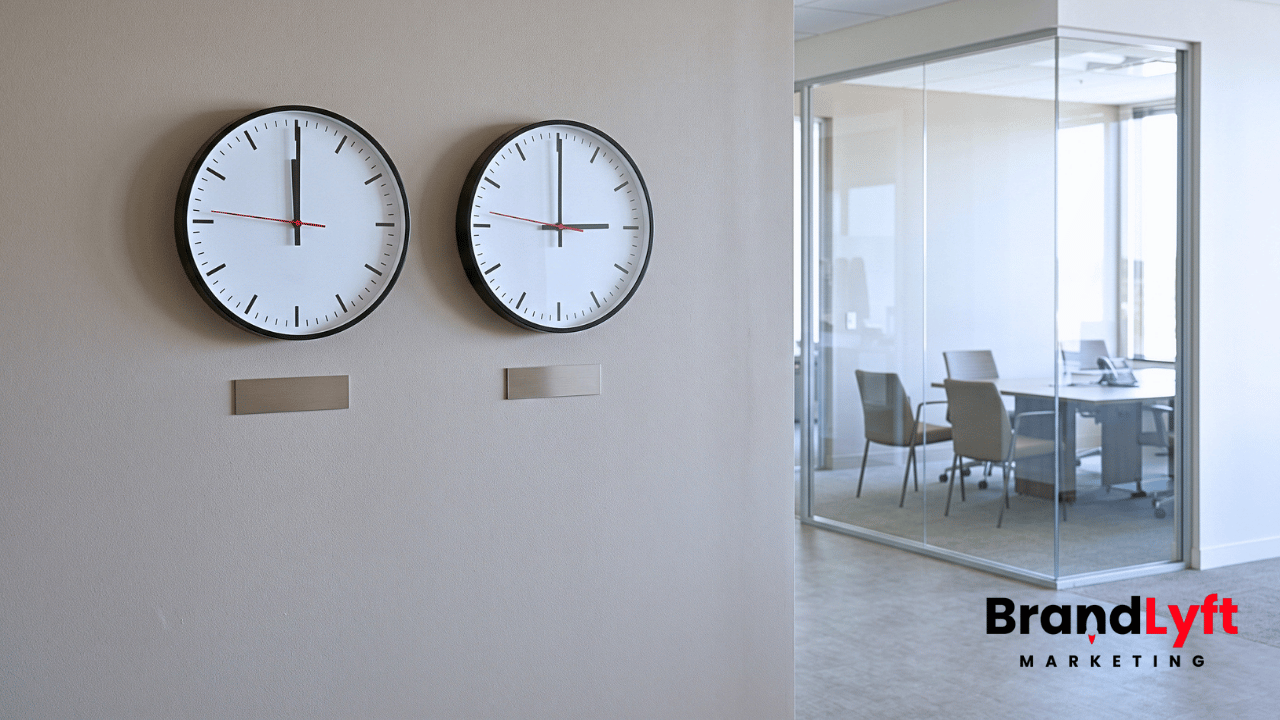
    A three-hour difference in a GoHighLevel calendar is not enough reason to move an appointment. A manager in California might see noon while a New York branch sees 3:00 PM, and both could be looking at the same booking. The real problem starts when the customer expects 3:00 PM in New York but the appointment itself was created for 6:00 PM there.

    If you are investigating a GoHighLevel appointment wrong time complaint, work from the saved appointment outward. Find out whether someone is viewing the correct moment in another timezone, whether the booking action interpreted the customer’s choice incorrectly, or whether a confirmation or reminder says something that does not match the appointment. Those cases can look identical in screenshots. They need different corrections.

    Start with the one appointment people disagree about

    Before changing a calendar preference, identify the disputed appointment. Record the HighLevel subaccount, calendar, appointment record or ID where available, scheduled date, intended branch-local clock time, and how the customer booked. Was it the public booking page, a staff member booking manually, or a workflow’s Book Appointment action? That last detail matters because each path can interpret a time differently.

    Ask the branch for the appointment time it actually promised. If a consultation must take place at 3:00 PM New York time, record that with the full date and timezone. A screenshot showing only “3:00 PM” does not establish what moment the customer and staff agreed on. The same is true of an old text message that says “tomorrow at three.”

    Keep the received confirmation or reminder alongside the appointment record. When several employees are comparing screens, capture which location and timezone each person was viewing. Do not change the customer’s appointment just to make two screens show the same number.

    A different calendar display can still describe the right appointment

    HighLevel has a user-specific setting called View Appointments In under Calendar Settings > Preferences. It controls how the logged-in person sees appointments in supported calendar views, appointment lists, contact appointment sections, and conversations. Each user can select a preferred timezone. Changing this preference does not change availability, booking links, the scheduled appointment, or confirmation and reminder logic. HighLevel documents that separation in its appointment viewing timezone guide.

    Take Thursday, October 22, 2026. An illustrative New York branch has a consultation at 3:00 PM Eastern Daylight Time. A California regional manager with the calendar displayed in Pacific Daylight Time sees 12:00 PM. That is a three-hour difference, but it is the same moment. If the customer has a New York confirmation for 3:00 PM and the saved appointment agrees, there is no booking to repair.

    Check the timezone label in the Calendar View or Appointment List, then open the viewer’s preference. The regional manager may prefer to view every booking in the branch timezone, or keep their own local timezone for the day’s work. Either choice affects their display, not the customer’s reservation. If the manager uses the HighLevel mobile app, check that app’s appointment timezone preference too; it is a viewing control, not an alternate booking system.

    There is a temptation to change the subaccount’s business timezone at this point. Resist it. A business timezone is a different control, and changing it can affect how other parts of the account interpret time. First establish that the supposed mismatch is not simply two people reading the same appointment in their chosen zones.

    A wrong booking can start when a workflow reads the clock time

    Now consider the other version of the complaint. The New York team intends a consultation for 3:00 PM local time, but a workflow passes the value “3:00 PM” to Book Appointment and interprets that value in a California account timezone. On October 22, a booking for 3:00 PM Pacific would be 6:00 PM in New York. The staff calendar and the customer’s message might faithfully show the later appointment, even though nobody intended to book that time.

    Adult music student holding a guitar case while looking toward an empty teaching station inside a professional lesson studio.
    When an appointment is booked for a different time than the branch intended, the customer and service team may be out of sync. The saved booking and its timezone must be checked before making a correction.

    This is an illustrative wrong-booking case, not a BrandLyft customer incident. HighLevel’s Book Appointment timezone update specifically describes how the workflow action reads its Start Date & Time using the selected timezone. The action supports a fixed timezone or a contact-based choice such as Contact Timezone. If the action has no timezone selection, it uses the account timezone by default. The setting applies to that action; it does not redefine every calendar or workflow timezone in HighLevel.

    For an account that books appointments through automation, read the actual workflow action before correcting anything. Where did the start-time value come from? What timezone does the action use to interpret it? Did the contact have the expected timezone when that action ran? Is the correct branch calendar selected? If someone enabled Override Availability, the action can book without the normal availability check. That is another reason a seemingly valid booking deserves an action-level review.

    A manually created appointment calls for a different inspection. HighLevel’s manual booking guide describes appointment-entry views that show or allow time selection in context. Compare the timezone in the actual booking form and the intended local time. Do not diagnose a manual booking from workflow settings that never created it.

    What did the customer see on the booking page?

    The person making the booking may be in a different timezone from the branch they plan to visit. HighLevel supports a contact timezone selector on eligible booking widgets; a business can also disable that choice so the page uses the subaccount timezone. The relevant controls appear in Settings > Business Profile, as described in HighLevel’s contact timezone booking guide.

    Imagine a California customer booking an in-person consultation at a New York location. A customer-facing slot shown as noon Pacific may correspond to 3:00 PM at the branch. That can be perfectly correct. But a customer who assumes the displayed noon is New York time may arrive with the wrong expectation. The problem is no longer just what HighLevel saved; it is whether the booking screen and confirmation made the appointment’s timezone clear.

    Some calendar types have additional booking-page timezone controls, including a lock for service booking pages. Check the actual calendar type and public booking link rather than assuming all widgets offer the same options. Keep this separate from the staff member’s View Appointments In preference, which cannot correct a customer’s booking-page choice.

    The appointment can be right while the reminder is wrong

    A confirmation or reminder creates another place for the clocks to disagree. The saved appointment may be correct and both staff views may convert it correctly, yet the outbound message might use a hard-coded time, the wrong appointment context, or a workflow that runs at an unexpected hour.

    HighLevel supports appointment merge fields including {{appointment.start_time}} and {{appointment.timezone}}. Those fields can help a message show appointment information rather than manually typed clock times. But a merge field still needs the right appointment context. HighLevel’s merge-field reference identifies the available values; it does not prove that every existing email or SMS in a franchise account uses them correctly.

    Compare the delivered reminder with the saved time

    Trace the particular message that reached the customer. Was it a native calendar notification, an appointment-triggered workflow, or another campaign? Look at the rendered message, not only the template editor. Compare the written appointment time and timezone with the saved record. Then check the time the message went out. A reminder that says “3:00 PM” but arrives at an odd hour presents two possible issues: the content may be wrong, or the sending schedule may be wrong. Sometimes both deserve a check.

    For workflow communications, HighLevel’s Workflow Settings guide distinguishes Account Timezone and Contact Timezone for time-dependent steps such as Wait actions and Time Windows. If the contact lacks a timezone, those workflow settings fall back to the account timezone. That rule affects communication timing; it should not be confused with the separate timezone input in the Book Appointment action.

    Ask which event the workflow uses when it schedules a reminder. A fixed delay from workflow entry is not the same as a Wait step tied to the appointment time. A message generated without a matching appointment context can also render differently from one triggered by the actual booking. Find the sending rule before moving a live appointment or editing a customer’s timezone field.

    Two three-hour cases, two different decisions

    The date and region matter. On October 22, 2026, New York and Los Angeles are three hours apart. Case A shows two people viewing one correctly saved appointment. Case B shows a workflow creating an incorrect appointment by reading a New York clock time as Pacific time.

    EvidenceCase A: Display differenceCase B: Booking interpreted in wrong timezone
    Intended New York appointment3:00 PM EDT3:00 PM EDT
    Actual appointment3:00 PM EDT6:00 PM EDT
    California staff view12:00 PM PDT3:00 PM PDT
    Likely source to inspectUser display timezoneBook Appointment timezone and start-time input
    DecisionPASS if customer confirmation matches the intended appointmentHOLD until staff verify the intended time and fix the booking source

    Changing the California viewer’s preference in Case B just to make the screen say noon would hide the discrepancy. The saved appointment would still be three hours later than the New York branch promised.

    Use one appointment as the evidence record

    The most useful record is not a screenshot of every timezone setting. It is a small comparison tied to the same appointment and the exact event that created it. Keep the real customer’s details out of general troubleshooting notes, and record only what the authorized team needs.

    For each disputed booking, capture the branch and calendar, intended date/time with timezone, source of booking, saved appointment time, each viewer’s selected timezone, customer-facing booking-page timezone, rendered confirmation/reminder time, workflow action or sending rule, and final PASS or HOLD decision. Add a named fix owner only when something genuinely needs changing.

    One more complication deserves attention: daylight saving time. A three-hour offset observed in October is not a universal setting. For example, New York is three hours ahead of Phoenix on October 22, 2026, but two hours ahead on January 20, 2027. Phoenix does not change clocks for daylight saving time. Test the actual appointment date and the relevant timezone names rather than subtracting a remembered number of hours.

    Test the fix without editing a customer’s appointment

    If the appointment appears wrong, make a copy of the relevant configuration details before any edit. A test should use an authorized synthetic contact or a clearly controlled test booking, not a live customer’s appointment. Use the same calendar type and booking path, and select a date where the expected offset can be calculated independently. Where the workflow books the appointment, test that workflow action under the intended timezone. Where the complaint concerns reminders, test the actual delivery method and inspect the received message.

    The test needs one agreed expected instant, with an explicit timezone, before anyone clicks Book. Check the booking record after creation, then view it from the two staff timezones and read the delivered test confirmation. If the team expects 3:00 PM New York, that is the reference. Another employee seeing noon California should not fail the test by itself.

    Rescheduling a real appointment can fire notifications or appointment-based workflows. HighLevel also allows appointment triggers to re-enter workflows under conditions described in its workflow documentation. Before a correction, identify who is allowed to contact the customer, which reminders are pending, and which system owns the change. That avoids turning one timezone disagreement into two competing appointment notices.

    For calendar changes during an account move, BrandLyft’s GoHighLevel calendar migration guide addresses preserving future bookings and notification ownership. A wrong-time investigation should remain focused on one booking unless it uncovers a migration or replacement-calendar problem.

    When the time still looks wrong across locations

    A regional admin may have access to several subaccounts, each with its own business timezone and calendar configuration. Start with the actual branch, not the admin’s home timezone. BrandLyft’s multi-location setup checklist covers the broader location-level configuration decisions; this diagnosis concerns one saved appointment and the path that produced its time.

    Do not change every subaccount timezone because one manager’s screen appears different. Reconcile the original booking, the selected viewer timezone, and the message that the customer received. If one of them still disagrees, the evidence will show which setting, template, or action deserves an authorized correction.

    For franchise teams with recurring booking discrepancies

    Compare the actual location setup before rebuilding calendars

    BrandLyft’s GoHighLevel for Franchises service covers calendar configuration, local workflows, permissions, and the way each branch uses the CRM. Review the service scope if wrong-time appointments keep appearing across locations.

    See franchise GHL services

    The appointment record tells you when HighLevel currently expects the meeting to happen. The customer’s confirmation tells you what the customer was told. Keep both in front of the person making the correction. A different staff display may be fine; a saved appointment that misses the promised time needs a real fix.

  • Marketing Automation for Occupational Health Clinics: Multi-Location GoHighLevel Guide

    Marketing Automation for Occupational Health Clinics: Multi-Location GoHighLevel Guide

    Marketing automation for occupational health clinics gets messy fast when every location handles employer inquiries, appointment reminders, intake, follow-up, and reporting a little differently. One clinic uses a shared inbox. Another relies on front desk sticky notes. Another has a manager who knows how to move every employer account forward, but the process lives mostly in that person’s head.

    That may work for one clinic with a small team. It breaks down once the business has several locations, employer accounts, recurring screenings, walk-ins, after-hours calls, drug testing requests, DOT physicals, workers’ comp referrals, and HR teams asking for updates.

    Marketing automation for occupational health clinics should not feel like a pile of random texts and workflows. It should create one clean operating path from inquiry to booked appointment, from visit to follow-up, and from location-level activity to owner-level visibility.

    That is where GoHighLevel can fit well. Used the right way, it can support lead capture, appointment flow, location routing, reminders, missed-call follow-up, pipeline tracking, employer reactivation, review requests, and reporting. Used halfway, it becomes another place where data gets parked but nobody fully trusts it.

    This guide breaks down how marketing automation for occupational health clinics can work across multiple locations without turning the clinic into a software project.

    Why Marketing Automation for Occupational Health Clinics Needs a Different Setup

    Occupational health clinics do not operate like a basic local service business.

    The buyer is often an employer, HR director, safety manager, staffing coordinator, risk manager, transportation company, or franchise operator. The person receiving the service may be an employee, applicant, driver, injured worker, or returning team member. The clinic has to manage both sides of that relationship without confusing the process.

    That is why marketing automation for occupational health clinics needs more than a generic CRM pipeline. The system has to sort employer inquiries, employee appointment flow, service type, location, urgency, and follow-up status.

    For example, a clinic may need separate paths for:

    Pre-employment physicals, DOT physicals, drug testing, respirator fit testing, hearing testing, vaccines, titers, workers’ comp visits, employer account inquiries, on-site service requests, and recurring compliance-related programs.

    Some of those requests are patient-facing. Some are employer-facing. Some need a same-day callback. Some need account setup. Some need documentation before the employee arrives.

    A generic “new lead” workflow is too blunt for that.

    Marketing automation for occupational health clinics should help the team know what came in, who owns it, where it belongs, and what needs to happen next.

    Where Multi-Location Clinic Systems Usually Break

    Most multi-location clinic problems do not start as major failures. They start as small workarounds.

    Quick Gut Check

    If Each Location Handles Leads Differently, Your CRM Is Already Telling You Something

    Before adding more workflows, it may be smarter to see where the handoff is breaking first. A Franchise GHL Location Usage Audit gives you a clear read on which locations are following the system, which ones are working around it, and where leads are getting stuck.

    Find the Location Gaps

    A front desk person calls an employer back manually. A location manager keeps a spreadsheet of key accounts. Appointment reminders are inconsistent. A form sends to one inbox, but the person responsible for that service works at another location. A clinic marks an inquiry complete even though the employer never received the next step.

    Over time, the system becomes harder to trust.

    Marketing automation for occupational health clinics should reduce those quiet leaks. The goal is not to automate every judgment call. The goal is to remove avoidable delay, missed handoff, and unclear ownership.

    Common issues include employer inquiries going to the wrong location, service forms that do not identify the right appointment type, missed calls with no fast text-back, no-shows with no reschedule path, pipeline stages that do not match the clinic’s real process, and reporting that shows activity without showing which locations are actually moving.

    GoHighLevel can support these pieces, but only if the setup reflects the real clinic workflow. A copied snapshot or basic template will not understand your service lines, clinic locations, employer account process, or staff responsibilities.

    Start With the Real Intake Paths

    The first step in marketing automation for occupational health clinics is mapping every front door.

    That means more than the contact page. A multi-location occupational health clinic may receive inquiries through website forms, landing pages, paid ads, phone calls, referral partners, HR emails, chat widgets, Google Business Profile clicks, repeat employer contacts, and manual staff entry.

    Each source needs a clear path.

    A “schedule a physical” form should not move the same way as a “set up an employer account” request. A DOT physical inquiry should not get the same follow-up as a workplace injury visit. An on-site testing request should not land in the same bucket as a single applicant appointment.

    BrandLyft’s own GoHighLevel audit content makes this same point in a broader GHL context: lead capture is only useful when each entry point is connected, tagged correctly, attributed correctly, and routed into the right path. That is why this article fits naturally beside a real GoHighLevel audit conversation.

    For occupational health clinics, those tags and routing rules may include clinic location, service category, employer account status, appointment urgency, source, campaign, assigned staff member, and next required action.

    Marketing automation for occupational health clinics works better when intake is boring, clear, and repeatable.

    Build Service-Based Routing Inside GoHighLevel

    Once intake is mapped, routing becomes the next big piece.

    For multi-location clinics, routing should usually answer four questions:

    Which location should handle this? Which service line does this involve? Is this a new employer, existing employer, applicant, employee, or referral? What should happen first?

    That logic can drive pipeline placement, user assignment, internal alerts, appointment links, and follow-up timing.

    A new employer inquiry may need a fast sales or account setup path. An existing employer sending an employee for testing may need a simpler scheduling path. A missed call after hours may need an instant text-back that asks what service the caller needs, then routes the response to the right team.

    This is where a GoHighLevel build needs clinic-specific thinking. Marketing automation for occupational health clinics should not dump every inquiry into one general pipeline. It should create simple lanes that the team can understand and actually use.

    A clean setup might include separate pipeline stages for new employer inquiry, account setup needed, appointment requested, appointment booked, visit completed, follow-up pending, employer reactivation, and closed.

    The names matter less than the behavior. If staff cannot tell what stage means, the stage will not last.

    Use Appointment Reminders Without Creating Compliance Drag

    Appointment reminders are one of the easiest wins, but clinics need to use them carefully.

    HHS says covered health care providers may communicate electronically with patients when reasonable safeguards are applied, and it gives appointment reminders as an example of communications a provider may accommodate by email when reasonable. That does not mean every clinic should blast detailed health information through SMS or email. It means reminders should be simple, limited, and built with privacy in mind.

    For marketing automation for occupational health clinics, the safest operational pattern is usually short reminders that confirm the appointment time, location, and basic prep instructions without exposing unnecessary details.

    A reminder can say the appointment is coming up and include what to bring. It does not need to include sensitive clinical details. The clinic’s own compliance lead should decide what language is approved.

    GoHighLevel can support reminders, confirmations, no-show follow-up, and reschedule prompts, but the content should be reviewed before it goes live.

    Marketing automation for occupational health clinics should reduce no-shows and confusion without creating a new privacy problem.

    Clean Up Employer Follow-Up

    Employer follow-up is where many clinics leave money sitting.

    An employer asks about setting up a new account. Someone responds once. The employer gets busy. No one follows up. Three months later, the clinic is still hoping that account comes back around.

    Marketing automation for occupational health clinics can keep those employer conversations alive without forcing the staff to remember every manual follow-up.

    A good employer follow-up path can include an instant confirmation, a task for the assigned team member, a short follow-up sequence, reminders to check back, and a pipeline stage that shows account status.

    The message should sound human, not like a drip campaign. Employers are not looking for ten marketing emails. They need a clear next step, clean scheduling, simple service information, and someone who responds when the need is active.

    This is where BrandLyft’s Revenue System Build angle fits. The point is not “more automation.” The point is a system where every lead gets captured, routed, followed up with, and tracked through a pipeline the team can run day to day.

    For occupational health, that means employer accounts should not disappear into a shared inbox.

    Give Each Location Room Without Losing Central Visibility

    A multi-location clinic has a real tension. Each location has local staffing, hours, capacity, and service mix. Ownership still needs one clear view of performance.

    Marketing automation for occupational health clinics should standardize the parts that need consistency while leaving room for location-level reality.

    That may mean shared pipeline logic across all clinics, but separate calendars by location. Shared employer intake forms, but location-specific routing. Shared reporting rules, but local staff assignments. Shared reminder language, but different availability and service options.

    BrandLyft’s Who We Serve page says the agency builds systems for service businesses that rely on calls, leads, and booked appointments, including multi-location businesses where routing complexity and reporting consistency matter. That maps cleanly to occupational health clinics with several offices.

    The wrong setup makes every location feel trapped inside a corporate CRM. The right setup gives each team a clear operating lane while ownership can still see where inquiries, bookings, and bottlenecks are happening.

    Marketing automation for occupational health clinics should make the business easier to read, not harder to manage.

    Connect Forms, Calendars, Calls, and Reporting

    A lot of GoHighLevel accounts fail because the pieces exist but do not talk cleanly.

    The form captures the inquiry. The calendar books the appointment. The phone number receives calls. The pipeline tracks movement. The reporting dashboard shows outcomes. But if those pieces are not connected, the team still has to stitch the story together manually.

    That defeats the purpose.

    Marketing automation for occupational health clinics should connect the core workflow:

    A lead comes in. The service type is captured. The location is assigned. The right team is notified. The appointment path starts. The pipeline updates. The employer or patient receives the right next step. The report shows what happened.

    This is where a GoHighLevel partner can be useful. The job is not just turning on features. The job is wiring forms, calendars, workflows, pipeline stages, reminders, alerts, and reporting around how the clinic actually operates.

    Before You Build More Automation

    See What Your GoHighLevel Account Is Actually Doing Across Locations

    Most messy GHL accounts do not need more features first. They need a cleaner read on forms, calendars, workflows, routing, pipelines, reminders, and reporting. That is what the audit is built to uncover.

    If the clinic uses other systems for EHR, billing, lab results, occupational medicine records, or employer portals, GoHighLevel should not be treated as the clinical source of truth. It can still handle marketing, intake, follow-up, and routing if the boundaries are clear.

    Use Automation for Speed-to-Lead, Not Clinical Judgment

    Occupational health clinics still need trained staff making the right decisions.

    Marketing automation for occupational health clinics should not replace clinical review, compliance judgment, or staff responsibility. It should speed up the parts that do not need a person thinking from scratch every time.

    That includes instant missed-call text-back, appointment confirmations, reminders, internal notifications, task creation, employer follow-up, reactivation, review requests, and pipeline movement.

    It should not include unreviewed medical advice, sensitive diagnosis details, or anything that should live inside a clinical workflow.

    This boundary matters. OSHA’s medical screening and surveillance guide points employers back to specific standards and notes that its guide is a general overview, not a standard or regulation. Occupational health work can involve real compliance requirements, so automation should support the process without pretending to replace professional review.

    The strongest marketing automation for occupational health clinics respects the line between operational follow-up and clinical decision-making.

    Create Reporting That Owners Can Actually Use

    Reporting is where multi-location clinic leaders often find the real problem.

    They may know total lead volume. They may know appointment counts. But they may not know which location is slow to respond, which source brings employer accounts, which services create repeat demand, where no-shows are highest, or which follow-up path is failing.

    Marketing automation for occupational health clinics should make those questions easier to answer.

    Useful reporting may include inquiry source by location, booked appointments by service line, speed-to-lead, missed-call volume, no-show trends, employer account status, pipeline aging, follow-up completion, and location-level conversion.

    This does not need to become a heavy data project. The first version can be simple. The key is that the data has to be clean enough to trust.

    BrandLyft’s CRM and app development work is a natural fit when clinics need integrations, custom workflow logic, dashboards, and cleaner data flow across systems.

    For a clinic group, better reporting is not just a management perk. It shows where staff need support, where demand is coming from, and where the process is quietly leaking.

    Add Employer Reactivation and Retention Paths

    Occupational health clinics often have past employer relationships that went quiet.

    Some sent candidates for drug testing last year. Some booked physicals during a hiring push. Some asked about on-site services but never moved forward. Some were active accounts until a coordinator changed jobs.

    Marketing automation for occupational health clinics can help identify and re-engage those accounts.

    A reactivation path does not need to be aggressive. It can be a simple check-in tied to hiring season, annual testing needs, flu shot timing, respirator fit testing cycles, DOT renewal reminders, or updated employer service options.

    The key is relevance. If every employer receives the same broad message, it will feel like generic marketing. If the message reflects the employer’s prior service interest, it feels more useful.

    BrandLyft already has a Speed to Lead service path for faster response, and the same logic can support cleaner employer reactivation for occupational health clinics.

    Marketing automation for occupational health clinics should support new inquiries, but it should also protect the value of accounts the clinic already earned.

    Add AI Carefully Where It Helps

    AI can help occupational health clinics, but only in narrow, practical ways.

    AI chat can help collect basic inquiry details, point visitors toward the right service path, and reduce abandoned website visits. AI voice or conversational tools can help after-hours callers get a fast response and route basic requests.

    But AI should not create confusion around medical guidance, patient privacy, or service promises.

    Marketing automation for occupational health clinics can use AI well when the job is intake support, routing, FAQs, and next-step collection. It becomes risky when the tool starts acting like a clinician, benefits administrator, or compliance officer.

    A safer setup is to use AI to gather structured information, then hand the lead to the right team. For example, an AI chat widget can ask if the visitor is an employer, applicant, or current account, then route the conversation based on location and service need.

    That fits BrandLyft’s broader AI Live Chat and AI conversation direction without turning the clinic website into an uncontrolled advice tool.

    What a Clean GoHighLevel Build Could Include

    A strong GoHighLevel setup for occupational health clinics should feel practical.

    It may include location-based calendars, employer inquiry forms, service-specific forms, missed-call text-back, appointment reminders, no-show follow-up, employer account pipelines, lead source tracking, internal notifications, staff tasks, winback lists, review requests, and reporting dashboards.

    Marketing automation for occupational health clinics becomes stronger when those pieces are simple enough for staff to trust.

    That means clean naming conventions, clear ownership, limited duplicate workflows, documented routing rules, and testing before launch. It also means checking the system after real leads start moving through it.

    The goal is not to make GoHighLevel impressive. The goal is to make the clinic’s lead flow, appointment flow, and employer follow-up easier to run.

    A multi-location occupational health clinic does not need a beautiful CRM that nobody uses. It needs a working system that supports real clinic behavior.

    When to Audit Before Rebuilding

    If a clinic already uses GoHighLevel, do not start by adding more workflows.

    Start by checking what is already there.

    The Next Workflow Can Wait Until You Know What Is Broken

    If your clinic group already has GoHighLevel, the smartest move is not guessing which automation to add next. Start with the usage audit, then fix the account around the way each location really works.

    Show Me What To Fix First

    Marketing automation for occupational health clinics can get messy when multiple people have edited the account over time. Before rebuilding, review the forms, calendars, users, custom fields, tags, workflows, pipelines, triggers, integrations, phone numbers, reporting, and automations that already exist.

    Look for duplicate workflows, outdated reminders, broken routing, confusing tags, unused pipeline stages, missing attribution, and team workarounds.

    That is why the right CTA for this article is a Franchise GHL Location Usage Audit. It gives a clinic group a way to see how each location is using the system, where staff trust it, where they avoid it, and where the setup no longer matches the real workflow.

    Marketing automation for occupational health clinics should begin with truth. If the current account is already unstable, adding more automation only makes the mess harder to diagnose.

    Final Takeaway

    Marketing automation for occupational health clinics is not about replacing clinic staff with software. It is about reducing the manual drag around employer inquiries, appointment scheduling, follow-up, location routing, and reporting.

    For multi-location occupational health clinics, the real win is consistency. Every location should know what to do when an inquiry comes in. Every employer should get a clear next step. Every appointment should have a reminder path. Every missed call should get a response. Every owner should be able to see what is working without chasing spreadsheets.

    GoHighLevel can support that kind of system, but only when it is built around the way the clinic actually operates.

    If your occupational health clinic group already uses GoHighLevel, start with a Franchise GHL Location Usage Audit before adding another workflow. Find the gaps first. Then build the automation around the real clinic process.

    Request a Franchise GHL Location Usage Audit

    If your clinic group has multiple locations using GoHighLevel, BrandLyft can help you find where the account is clean, where it is patched together, and where location usage is creating hidden lead leaks.

    Start with a Franchise GHL Location Usage Audit so your team can see what needs cleanup before more automation gets added.